Cline in VS Code with a free DeepSeek model

I recently tried out the Cline extension for VS Code, and for my test I used the free model deepseek/deepseek-v4-flash.
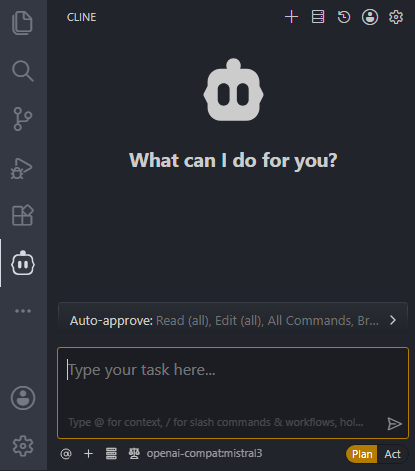
Cline is basically an AI coding assistant that runs directly inside Visual Studio Code. You can ask it to explain code, create files, fix problems, refactor things, or help you work through a coding task step by step.
What I liked right away is that it gives you a lot of freedom. You are not stuck with just one AI provider or one specific model. In my case, I used the free DeepSeek model, which is great if you just want to test things without spending money right away.
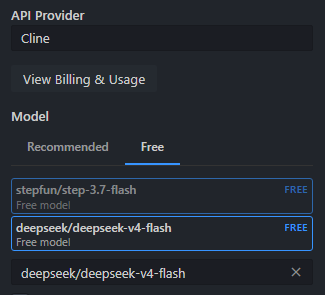
Another cool thing is that Cline can also work with local models. So if you have a model running on your own machine, you can connect it and use it inside VS Code. That is really useful if you care about privacy, want more control, or just enjoy playing around with local AI tools.
You can also use an OpenAI-compatible API with your own API key. So you do not have to use only the official OpenAI API. Any provider that offers an OpenAI-compatible endpoint can be used, as long as you configure it properly in Cline.
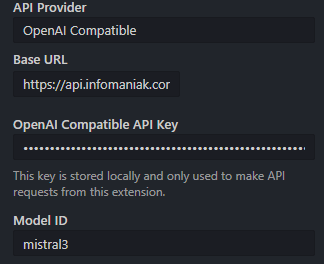
The setup was pretty straightforward. I installed the extension, added the model settings, and started testing it in a project. I asked it to look at some code, suggest changes, and help me with a few small coding tasks.
Of course, you still have to check what it does. It is helpful, but it is not magic. Sometimes the suggestions are good, sometimes you need to adjust them, and sometimes you just know better because you understand your own project.
Overall, my first impression was really positive. Cline feels like a useful AI assistant for VS Code, especially because it is flexible. You can try a free model like deepseek/deepseek-v4-flash, use local models, or connect an OpenAI-compatible API with your own API key.
So if you want to try AI coding directly inside VS Code, Cline is definitely worth checking out.
Daniel Opitz
Developer, Trainer & Open Source Contributor. Passionate about PHP, Slim Framework, and clean code.
Comments